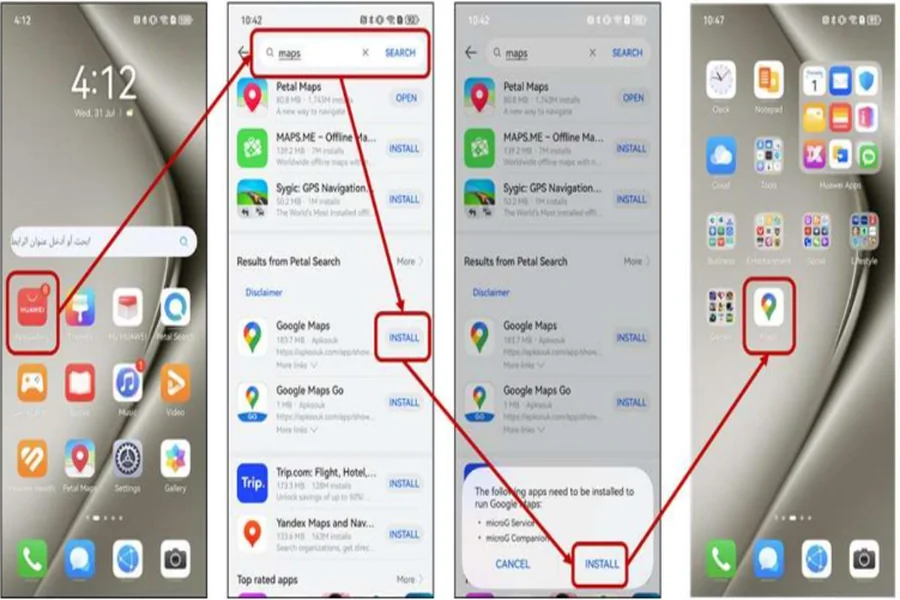
Huawei smartphones are known for their exceptional hardware and innovative features. However, accessing Google Maps directly has become a challenge for users. Google Maps, celebrated for its accurate navigation, real-time traffic updates, offline functionality, and route planning, remains a critical tool for many. Despite this, Huawei users can still enjoy Google Maps’ capabilities via alternative installation methods. This guide will explore Huawei’s app ecosystem, provide a step-by-step tutorial for installing google maps on huawei, and show how to integrate it seamlessly with Huawei’s native apps for an optimal experience.
Understanding Huawei’s App Ecosystem
Huawei Mobile Services (HMS) and AppGallery
Huawei developed its own set of services, HMS. Central to this ecosystem is the AppGallery, Huawei’s official app store. AppGallery is an expansive platform that offers a variety of apps across different categories. While it houses many popular apps, it lacks several globally-renowned apps like Google Maps. Huawei’s intent with HMS and AppGallery is to provide a robust alternative to Google’s ecosystem, yet there are gaps, particularly in navigation apps, that users wish to fill.
Petal Maps vs Google Maps
Petal Maps, Huawei’s navigation app, offers basic navigation features such as live traffic updates, multiple map views, and lane assistance. Despite its user-friendly interface and steady improvements, it does not yet match Google Maps’ comprehensive feature set. Google Maps excels in accuracy, global reach, and data integration, including business listings, reviews, and rich satellite imagery.
Challenges of using Google Maps on Huawei devices
Installing Google Maps on Huawei devices presents challenges, mainly due to the app’s reliance on Google Play Services. This absence complicates both access and functionality. Users face obstacles in direct app downloads, updates, and receiving timely notifications. Despite these challenges, there are solutions available to install and effectively use Google Maps, ensuring that Huawei users can still leverage this pivotal tool.
Installing Google Maps on Huawei Devices
Step-by-step installation via AppGallery
While Google Maps isn’t available directly on AppGallery, there are third-party solutions. One way to get started is by using the Petal Search app, available on AppGallery, to search and download the Google Maps APK from trusted sources. Ensure that your device settings allow app installations from unknown sources. After downloading, install the APK, and you’re one step closer to accessing Google Maps.
Using GBox for compatibility with Google services
GBox is a tool that permits the running of apps dependent on Google services. First, download and install GBox from AppGallery. Then, log in to GBox with your Google account credentials. Within GBox, add Google Maps, allowing the app to use its compatibility layer. While this won’t provide full Google Play Services functionality, it facilitates essential features like location tracking and search.
Troubleshooting common issues
Users may encounter issues such as installation errors or the app not functioning correctly. If the installation fails, check for sufficient device storage and correct app permissions. If the app lags or crashes, regularly update both Google Maps and GBox and clear the app cache. Be vigilant about where APK files are sourced to avoid malware.
Enhancing Navigation with Google Maps Features
Offline maps and navigation
Google Maps provides offline navigation, a vital feature for travel or areas with poor network coverage. Simply search for the desired location, tap ‘Download,’ and save the map for offline access. This guarantees continuous guidance, even without an internet connection, ensuring a smooth and reliable navigation experience wherever you go.
Real-time traffic and route planning
Google Maps offers real-time traffic data, helping users avoid congestion and choose the quickest routes. By monitoring traffic conditions and providing estimated travel times, it enables better planning. These features ensure smoother travel experiences and allow users to adjust routes dynamically, saving time and avoiding delays, making it an essential tool for efficient navigation.
Integration with Huawei’s native apps
Google Maps integrates seamlessly with Huawei’s native apps. It syncs with the Contacts app to navigate directly from saved addresses. Additionally, addresses in the native browser or messaging apps can be clicked to open in Google Maps, making navigation quicker and more efficient. This collaboration enhances the user experience on Huawei devices.

Conclusion
Huawei users can enjoy Google Maps by employing alternative methods and tools like GBox. By following the steps outlined here, you can unlock the full potential of Google Maps. Once set up, you can take advantage of its vast array of features, enhance your travel experience, and stay connected to one of the world’s most reliable navigation tools. With the right setup, the power of Google Maps is fully accessible, ensuring you never lose your way.