
Setting up Gmail on Huawei phones may seem challenging due to unique software adaptations, but it’s a straightforward process with the right guidance. does huawei have gmail? Yes, Huawei devices can integrate Gmail through various methods, despite the absence of Google services. You can use Huawei’s built-in email app, the AppGallery, or a web browser to set up Gmail. Whether you’re a tech-savvy user or new to Huawei devices, these simple steps will ensure easy access to your emails. We’ll also address common issues and provide solutions for a seamless Gmail experience on your Huawei phone.
Method 1 – Using Huawei’s Built-in Email App
Step 1: Open the pre-installed Huawei Email App
Start by locating the Email app on your Huawei device. This app comes pre-installed and serves as a hub for managing email accounts. Tap the app icon, which usually displays an envelope or mail symbol. Upon opening, you’ll be directed to a screen prompting you to add an account.
Step 2: Select ‘Add Account’ and Choose ‘Google’
Once inside the Email app, look for an option that says ‘Add Account.’ From the list of available providers, select ‘Google.’ This option will initiate the process to add your Gmail account. Selecting ‘Google’ ensures that the app interfaces properly with Gmail’s IMAP/SMTP servers, which are necessary for sending and receiving emails.
Step 3: Enter Gmail Credentials and Grant Necessary Permissions
After selecting ‘Google,’ you’ll need to input your Gmail address and associated password. Huawei will then ask for permissions to access your emails and sync contacts. Be sure to allow these permissions to enable full functionality. Granting access ensures you get timely notifications and maintain data integrity between your Gmail account and your device.
Step 4: Sync Settings and Manage Notifications
The final step involves configuring sync settings. Decide how frequently the app should check for new emails and adjust the notification settings to suit your preferences. For instance, you can opt to receive sound alerts, vibration, or visual notifications for new emails. Configuring these settings lets you stay on top of your emails without unnecessarily draining your battery.
Method 2 – Installing Gmail via AppGallery
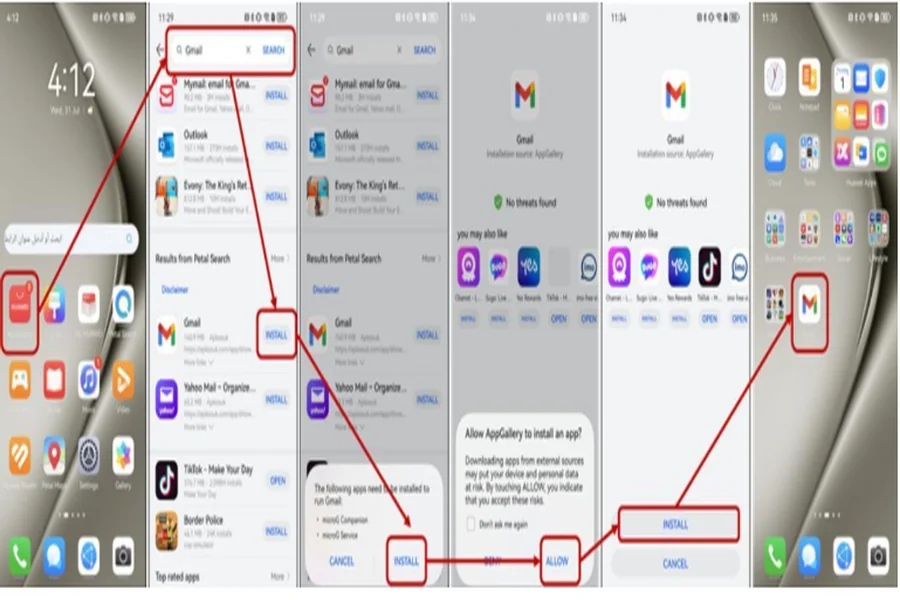
Step 1: Open AppGallery and Search for ‘Gmail’
Navigate to your home screen and open the AppGallery, Huawei’s official app store. Use the search bar at the top and type ‘Gmail.’ The search will display the official Gmail app. Make sure to select and install the correct application to access Gmail services on your Huawei device, ensuring a seamless experience.
Step 2: Install the Gmail App
Tap on the Gmail app from the search results to access the download page. Once there, you’ll see an ‘Install’ button; click it to begin downloading and installing the app onto your Huawei device. The process might take a few moments, depending on your internet connection speed, so please be patient during the installation.
Step 3: Sign in with your Google Account
Once installation is complete, open the Gmail app. The first screen will prompt you to sign in. Enter your Google account credentials (the same ones used for your Gmail) and tap ‘Next.’ A successful sign-in will grant you access to your Gmail inbox and all associated features, allowing you to start using Gmail seamlessly on your Huawei device.
Step 4: Adjust Sync and Notification Settings
Similar to the built-in email app, configure your sync and notification settings within the Gmail app. Access the settings menu to adjust these options, ensuring you receive real-time notifications for new emails. Tailoring these settings can enhance performance, keeping your Gmail account running smoothly and ensuring you never miss an important email.
Method 3 – Accessing Gmail via Web Browser
Step 1: Open Huawei Browser and Navigate to mail.google.com
If you prefer not to install additional apps, you can easily access Gmail using a web browser. Simply launch the Huawei Browser on your device, type “mail.google.com” in the address bar, and you’ll be directed to Gmail’s mobile site. This allows you to check emails and manage your account without the need for extra installations.
Step 2: Sign in to Your Google Account
The Gmail web page will prompt you for your Google account credentials. Enter your username and password, then tap ‘Next.’ Signing in via the web is secure and efficient, particularly if you regularly clear your cache and browsing history. This helps ensure smoother access and better performance while using Gmail on your Huawei device.
Step 3: Use Gmail Through the Mobile Web Interface
Once logged in, you’ll be using Gmail’s mobile interface, which functions similarly to the app but without needing to install dedicated software. You can send, receive, and organize emails directly from your browser, ensuring a clutter-free experience. This method is perfect for users with limited storage space, offering seamless access to Gmail without extra app downloads.

Troubleshooting Common Issues
Issue 1: Gmail Not Syncing
If Gmail isn’t syncing on your Huawei device, start by checking your internet connection and sync settings. Ensure your Wi-Fi or mobile data is active. Then, go to your Huawei settings and confirm that Gmail’s sync option is enabled for real-time data synchronization. These steps should help resolve any syncing issues you might encounter.
Issue 2: Authentication Errors
Authentication problems may occur if two-factor authentication is enabled but not properly set up on your device. To fix this, update your security settings or generate an app-specific password. Doing so will enable seamless access to your account, ensuring you can log in without encountering any authentication issues.
Issue 3: App Crashes or Slow Performance
Frequent app crashes or slow performance may be caused by outdated app versions or excessive cached data. To resolve this, clear the app cache or reinstall the app from AppGallery to ensure you have the latest version. Regular updates can help maintain optimal performance and prevent issues like crashes or lagging.
Conclusion
Following the steps outlined in this guide, you can easily set up Gmail on your Huawei phone. Whether using the built-in email app, installing the official Gmail app through AppGallery, or accessing via a web browser, you have versatile options for email access. By addressing common issues like syncing problems and authentication errors, you ensure a smooth and uninterrupted email experience. Stay connected with these practical methods, keeping your communications flowing seamlessly on your Huawei device.