
Most Windows desktops start the same way. A few shortcuts on day one, then a steady pile‑up of files, folders, screenshots, and downloads. After a few weeks, the desktop becomes a storage shelf. You can still work, but you waste time hunting for the right item, and the screen looks busy even before you open a single app.
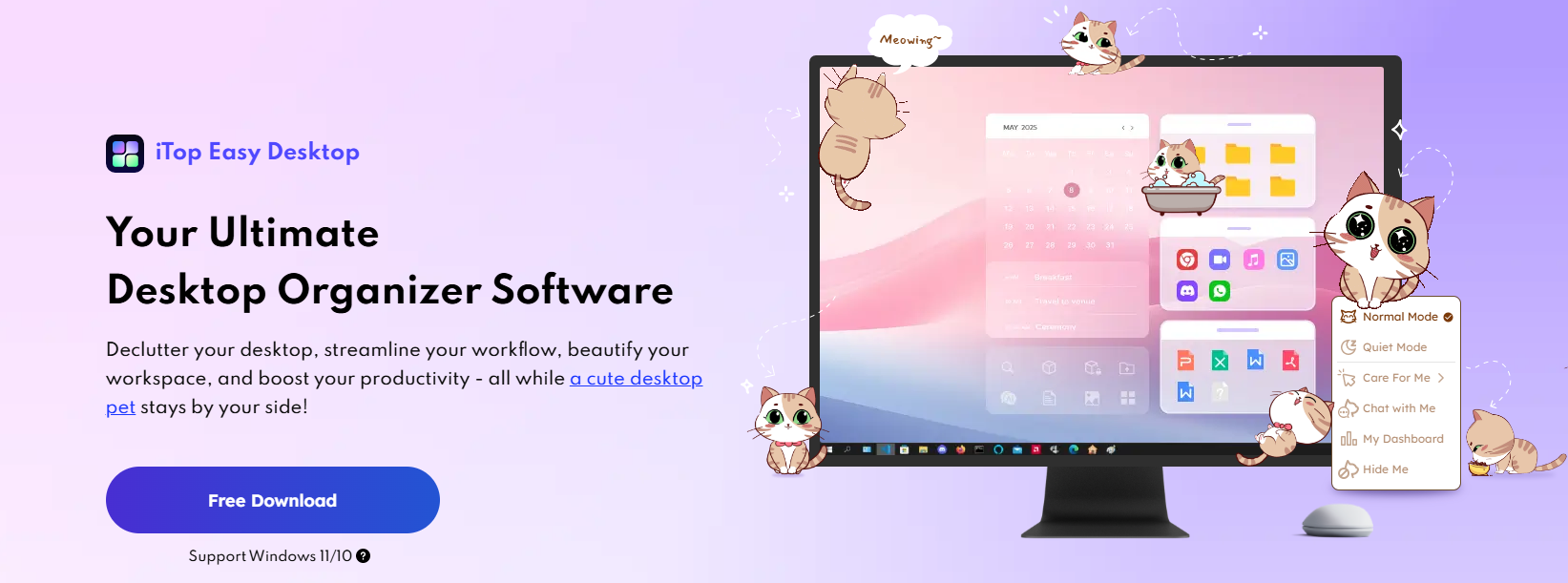
iTop Easy desktop is built for people who want a desktop that matches how they work, not the default layout Windows gives you. It sorts clutter into boxes, speeds up file access, adds widgets for daily tasks, and lets you refresh the visual style of the system with a few clicks.
What is iTop Easy Desktop
iTop Easy Desktop is a desktop organizer for Windows that focuses on auto‑organization, faster access to files, and a personalized look and feel.
The core idea is simple: auto‑declutter your desktop, organize your workflow, and raise efficiency with an all‑in‑one desktop solution.
Personalization that adapts to different work styles
Personalization is not only about colors or wallpapers. It is also about removing friction from daily tasks. iTop Easy Desktop does this by shaping the desktop around categories, habits, and routines, then adding visual tools that make the workspace feel intentional.
1‑click auto‑organization and box layouts
The fastest win is 1‑click auto‑organization. With one click, iTop Easy Desktop sorts desktop icons into intelligent, customizable groups such as Documents, Images, Applications, and Folders.

If you prefer your own structure, you can create personalized boxes for your workflow, like Urgent, Client, or separate desktop zones for work, gaming, and personal use.
This matters because people do not all file information the same way. A designer might group by client and asset type, while a developer might group by project, tools, and active tickets. The box system fits both without forcing a single template.
Fast file access with built‑in search
A messy desktop turns into a manual search task. iTop Easy Desktop includes a built‑in search bar that lets you locate a file or folder by typing its name, which is much faster than scanning a cluttered desktop.
For users who save a lot of temporary files, that search function can become the main way to open things, while the boxes keep the visual layout calm.
Widgets that support daily work
A desktop becomes more useful when it shows what you need, not just where your files are.
iTop Easy Desktop includes iNotes for quick reminders and a Schedule widget for tasks and deadlines, with sync support for Google Calendar and Outlook Calendar.
It also includes widgets like Weather, Clock, and iPomodoro, plus Quick Tools that act like a shortcut panel for key functions.
For remote work, that setup keeps the day visible without keeping a separate window open all the time.
Quick Screenshot with scrolling capture
Screenshots are part of the work now. People capture bug reports, design feedback, invoices, and meeting notes.
iTop Easy Desktop includes a Quick Screenshot tool that can capture any area of the screen, and it supports scrolling screenshots for long captures.
That is useful when you need one long image of a webpage, a long chat, or a full document section without stitching pieces together.
Double‑click hide for clean screen sharing
Even an organized desktop can reveal too much during a call. iTop Easy Desktop includes a double‑click hide option that can hide everything quickly, then show it again when you are done.
If you join meetings often, this single feature can remove a lot of stress when screen sharing.
Private Boxes for sensitive files
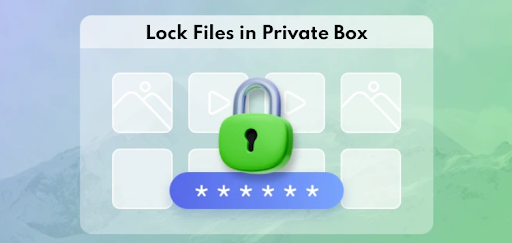
Some desktop items should not be visible at all. Private Boxes, available in the Pro plan along with Folder Portal, are designed to store items that you want protected, while the rest of the desktop stays open and accessible.
Folder Portal for faster navigation
Folder Portal gives quick access to folders you use often without digging through File Explorer every time.
You can pin project folders, cloud sync locations, or shared drives so they are only one click away from the desktop.
Visual style that changes the whole system

A lot of desktop tools stop at organization. iTop Easy Desktop also targets the look of Windows.
You can apply live wallpapers, themed packs, Start menu styles, desktop icons, and mouse cursor changes, with a 1‑click approach to refreshing the system style.
There are more than 20,000 high‑definition live and static wallpapers, with support for 4K and 8K video wallpapers.
For people who spend long hours in front of a screen, that kind of visual control is not about decoration only. It can make the environment feel less tiring and more personal.
Desktop Pet and playful elements
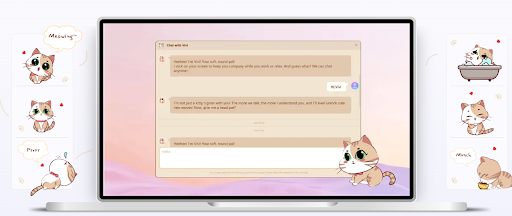
A desktop pet called PawPal adds a playful touch, acting as a small digital companion with interactive behavior.
This part is optional, but it speaks to the goal of making the desktop feel more like a personal space rather than a plain utility surface.
How to set up iTop Easy Desktop in a way that fits you
Step 1: Install and pick a starting style
Download iTop Easy Desktop from iTop official product page and install it.
On first run, use the auto‑organization option if you want a fast clean‑up, or create your own boxes if you already know how you want to group items.
Step 2: Create boxes that match habits, not file types
File-type boxes are fine, but habit‑based boxes work better for many people. Examples include Today, Active Client, Current Sprint, Receipts, and Upload Queue.
This works well with the Personalized Box Organization approach built into the software.
Step 3: Add widgets you will actually use
Turn on iNotes and Schedule if you manage tasks daily, and sync Schedule with Google Calendar or Outlook Calendar for a single view.
If focus is the issue, turn on iPomodoro and place it where you will see it.
Step 4: Set up screenshots and screen‑share safety
Use Quick Screenshot for fast captures, and use scrolling screenshots for long pages.
Enable double‑click hide so you can clean the screen instantly before a call.
Step 5: Refresh the look in one click
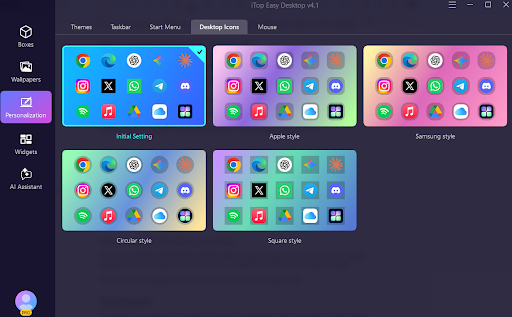
If you want the full personalization effect, apply a theme, swap Start menu style, and update desktop icons and mouse cursor. These are available as 1‑click system style changes.
Then pick a live wallpaper or a static one that fits your working mood.
Conclusion
A desktop that matches your habits can remove small daily frictions that add up, like hunting for files, cleaning before meetings, and keeping tasks visible.
iTop Easy Desktop focuses on that practical personalization through auto‑organization, custom boxes, faster search, widgets, quick screenshots, visual styling, and optional extras like wallpapers and a desktop pet.